 How-to guides
You open a board you haven't looked at in a while and something's off. A recipe you saved years ago is gone. A board you're sure had 300 pins now has 260. You didn't delete anything.
It happens to a lot of people, and it's rarely a glitch. Pins disappear for a handful of ordinary reasons, and once a pin is gone, there's usually no getting it back. Here's why it happens and how to keep a copy of the boards you care about.
Why Pins Disappear From Your Boards
The original was removed
Most of what's on your boards was uploaded by someone else. When you save a pin, you're saving a copy of their pin. If the original is removed, or the person who uploaded it closes their account, the copies saved from it can stop working too.
Pinterest took it down
Pinterest removes pins that break its rules, look like spam, or get a copyright complaint from the person who owns the image. A takedown like that can reach every saved copy of the same image, including the one on your board.
The website behind it is gone
A lot of pins are really bookmarks: a photo that links to a recipe, a sewing pattern or a tutorial. The picture can stay on Pinterest long after the website behind it shuts down or moves the page. The pin is still there, but the thing you saved it for isn't.
Your account got suspended
This is the one that catches people completely off guard. In 2025, many Pinterest users found their accounts suspended overnight, some with more than a decade of boards on them. Pinterest later admitted that a wave of those bans was caused by an internal error. While an account is locked, every board on it is out of reach, mistake or not.
Someone deleted it by accident
On a group board, the people you invited can often remove pins too. And a quick tap in the app is all it takes to delete a pin or move it to the wrong board.
Pinterest Isn't a Backup
Pinterest is built for finding and collecting ideas, and it's very good at that. It isn't built to keep them safe for you. There's no button to save a board's images to your computer, and there's no way to get a pin back once it's been removed.
So if a board matters to you, whether it's wedding planning, years of design references, or the recipes your family actually cooks, the only copy you can count on is one on your own computer.
How to Keep a Copy of Your Boards
For a handful of pins, saving the images by hand is fine. For whole boards, and especially boards that keep growing, you want something that does it for you and keeps doing it.
That's what the automatic backups in PinBoard are for. PinBoard is a desktop app for Mac, Windows and Linux that downloads Pinterest boards to your computer, and with backups turned on it checks your boards on a schedule and saves anything new.
1. Install PinBoard and get Pro
Download it from the PinBoard website. Backups are part of Pro, which is a one-time $19. There's no subscription, even though backups keep running for as long as you use the app.
2. Sign in to Pinterest
Click Sign in to Pinterest in the app. It opens Pinterest's own login page, so PinBoard never sees your password. Being signed in means your whole board loads, private and secret boards included.
3. Load a board and click Keep backed up
Paste the board's link, load it, and click Keep backed up. Choose daily or weekly. The first backup runs within a minute or so and saves the whole board, then each one after that saves only the new pins.
4. Let it run
PinBoard sits quietly in the menu bar on a Mac, or the system tray on Windows and Linux, and can start by itself when you log in. The Backups screen shows when each board was last saved.
The important part: backups only ever add files. PinBoard never deletes, moves or renames anything in your folders. So when a pin disappears from Pinterest, your copy stays right where it is.
Backups run while your computer is on and awake. If it was asleep when one was due, it runs as soon as the computer wakes up.
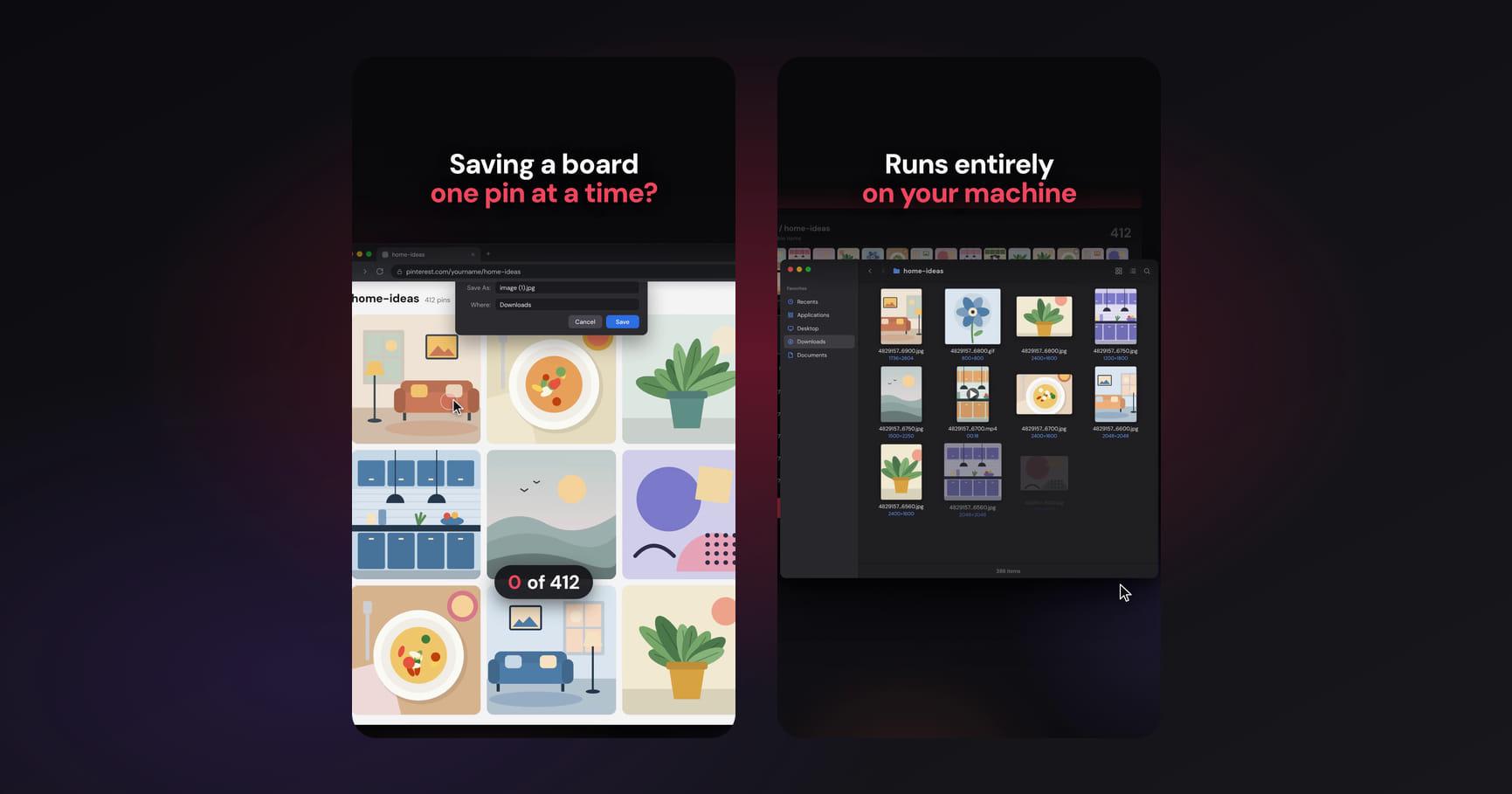
Here's what loading and downloading a board looks like:
What If a Pin Is Already Gone?
Honestly, once Pinterest has removed a pin, no app can bring it back, PinBoard included. That's the whole reason to back up before it happens.
If you remember the website a pin came from, try searching that site directly, or look the page up in a web archive. Recipes and tutorials often survive somewhere even after the pin is gone.
A Few Habits That Help
- For recipes and tutorials you love, open the link and bookmark the actual page, not just the pin.
- Turn on backups for the boards you'd be upset to lose, not every board you've ever made.
- Thinking of deleting your Pinterest account? Download your boards first. Once the account is gone, so are they.
Frequently Asked Questions
Can I back up private and secret boards?
Yes. Sign in to Pinterest inside PinBoard and they back up like any other board.
If a pin is removed from Pinterest, will my backup delete it?
No. Backups only add new files. Nothing already in your folder is ever removed.
Does PinBoard need to stay open?
It needs to be running, but it doesn't need a window. It lives in the menu bar or system tray while you have backups turned on.
Can I just download a board once, without backups?
Yes. Here's how to download a whole Pinterest board, step by step. The free version downloads the first 25 images of any public board.
Final Thoughts
Pins disappear for boring reasons: a creator cleans up, a website shuts down, an account gets locked by mistake. You can't stop any of that. What you can do is keep your own copy of the boards that matter, and let it update itself so you never have to think about it.